.svg)

How to Find and Fix Duplicate Transactions in Accounting (QuickBooks + Manual Methods)

Ask questions, get summaries, or uncover key takeaways from this article.
.webp)
Blog Summary / Key Takeaways
- Duplicate transactions are the most common data entry error in accounting. A payment recorded twice, an invoice imported twice, a bank transaction appearing in the GL two months apart.
- Duplicates inflate account balances, throw reconciliation off, and create extra work during close. A single duplicate might seem minor. Ten duplicates across your client base during one close cycle can cost hours to untangle.
- Manual detection methods (sorting by amount, reviewing by date, filtering in Excel) work but are slow and error-prone.
- Automated detection using bank feeds, QBO native tools, or AI-powered platforms like Xenett catches duplicates instantly and prevents them from entering the GL.
- This guide covers how to find duplicates manually, how to detect them in QuickBooks and Xero, how to fix them safely, and how to prevent them going forward.
What Are Duplicate Transactions?
Duplicate transactions occur when the same financial activity is recorded more than once in the general ledger. The same invoice, payment, or bank transaction appears twice with the same or similar date, amount, and description.
A duplicate inflates one or more account balances. It throws reconciliation off. It creates false activity in the GL that does not match supporting documentation.
Common examples:
- A customer payment received on the 15th and recorded twice in AR.
- A vendor invoice received and entered manually, then imported again through a vendor feed.
- A bank deposit recorded when posted, then re-recorded the next day manually.
- A transfer between bank accounts recorded in both accounts instead of one.
- A check written and recorded, then re-recorded because the check number was mistyped.
Why they happen:
Manual data entry is the primary cause. A bookkeeper posts a transaction, then posts it again thinking the first entry did not save.
Dual data sources create duplicates. A transaction is imported from a bank feed and also entered manually.
System errors can duplicate. A payment processor posts a transaction twice to the bank feed.
Timing issues cause false duplicates. A payment is recorded when initiated and recorded again when it clears the bank. These are timing differences, not true duplicates.
Why Duplicate Transactions Create Problems
A duplicate is not just a "minor" data entry error.
It throws reconciliation off. Bank reconciliation becomes impossible when the GL balance is higher than the bank statement because of a duplicate. The team spends hours trying to find the non-existent variance.
It inflates account balances. A duplicate vendor payment makes AP appear lower than it actually is. A duplicate customer payment makes AR appear lower. Financial statements are inaccurate.
It affects client decisions. A client sees inflated cash balance and makes spending decisions based on false data.
It delays close. Every duplicate found during reconciliation or review stops the close process. The duplicate must be identified, investigated, and removed before close can finalize.
It creates audit issues. Auditors flag unreconciled accounts during testing. Correcting duplicates during audit costs significantly more time than catching them during month-end close.
Cost of duplicates:
- A single duplicate: 15-30 minutes to identify and remove.
- Five duplicates in one close cycle: 2-3 hours of rework.
- Duplicates discovered during audit: 5-10 hours to reconstruct and correct.
How to Find Duplicate Transactions Manually: 4 Methods
Method 1: Sort by Amount and Date
Best for: Detecting obvious duplicates when GL has not been filtered.
Steps:
- Export the GL account to Excel.
- Sort by amount (ascending or descending).
- Look for identical amounts in consecutive rows or nearby rows.
- For each matching amount, check the date. Are they the same date?
- If same amount and same (or very close) date, investigate further.
Limitation: This method catches obvious duplicates but misses duplicates recorded weeks apart or with slightly different amounts (rounding errors).
Time required: 10-20 minutes for an account with 100+ transactions.
Method 2: Filter by Description
Best for: Detecting duplicates when you know the transaction type (vendor name, customer name, deposit description).
Steps:
- Export the GL account to Excel.
- Filter for transactions matching a specific vendor or customer name.
- Look for duplicate descriptions with the same amounts.
- Verify both entries are in the GL (cross-check the date range).
Limitation: Requires you to know what you are looking for. This is a targeted search, not a comprehensive scan.
Time required: 5-15 minutes per vendor/customer.
Method 3: Pivot Table Analysis
Best for: Large GLs with hundreds of transactions. Identifies patterns and summary-level duplicates.
Steps:
- Create a pivot table with Amount as the value field.
- Create rows for Date and Description.
- Look for duplicate descriptions with multiple count values.
- Investigate entries with count > 1.
Limitation: Works best for clear duplicates. Does not catch duplicates with small amount variations.
Time required: 15-30 minutes to set up. Then investigation depends on findings.
Method 4: Conditional Formatting
Best for: Visual identification of duplicate amounts and descriptions.
Steps:
- Copy the Amount column.
- Select the column and apply Conditional Formatting (Highlight Duplicates).
- Excel highlights duplicate amounts in a color.
- Visually scan for highlighted cells and investigate.
Limitation: Highlights exact duplicates only. A duplicate with a rounding error ($1,000 vs. $1,000.01) will not be flagged.
Time required: 5-10 minutes to set up. Then manual review of highlighted rows.
How to Find Duplicates in QuickBooks Online
QuickBooks Online does not have a built-in "Find Duplicates" tool, but there are several approaches.
Method 1: Use the Transaction List
Steps:
- Go to Accounting (left menu).
- Select Chart of Accounts.
- Click the account you want to review.
- View all transactions in that account.
- Sort by Amount or Date.
- Look for duplicate amounts with similar dates.
Limitation: Sorting by amount shows all transactions of that amount, not just true duplicates. Requires manual verification.
Time required: 10-15 minutes per account.
Method 2: Run the Transaction List Report
Steps:
- Go to Reports.
- Search "Transaction List."
- Select the account and date range.
- Export to Excel.
- Use Methods 1-4 above (sort, filter, pivot table, conditional formatting) to identify duplicates.
Limitation: Report is comprehensive but requires post-export analysis in Excel.
Time required: 5 minutes to run a report. 15-30 minutes to analyze.
Method 3: Check Bank Feeds for Duplicates
If the duplicate came from a bank feed, check the Uncategorized Transactions area:
- Go to Banking (left menu).
- Click the relevant bank account.
- Look at Uncategorized transactions.
- If the same transaction appears twice in this list, one of them is likely a duplicate.
- Delete the unwanted transaction or mark it as a duplicate.
Limitation: Only works if both duplicate transactions are in the uncategorized area. If one was already categorized/matched, it will not appear here.
Time required: 5-10 minutes.
How to Find Duplicates in Xero
Xero's approach is similar to QBO but with some different menu paths.
Method 1: Use Accounts List
Steps:
- Go to Business (left menu).
- Click Accounts.
- Click the account you want to review.
- View transactions in that account.
- Sort by Amount (click the Amount column header).
- Look for duplicate amounts with similar dates.
Limitation: Visual review only. Requires manual investigation.
Time required: 10-15 minutes per account.
Method 2: Export and Analyze in Excel
Steps:
- From the account view, export transactions (usually an Export or Download option).
- Open the export in Excel.
- Use Methods 1-4 from the Manual Methods section above.
Time required: 5 minutes to export. 15-30 minutes to analyze.
Method 3: Review Bank Reconciliation
Steps:
- Go to Business > Accounts > Bank Accounts.
- Click Reconcile.
- Look at unmatched transactions.
- If the same amount appears twice, one may be a duplicate.
- Investigate and remove if confirmed.
Time required: 10-15 minutes.
How to Remove Duplicate Transactions Safely
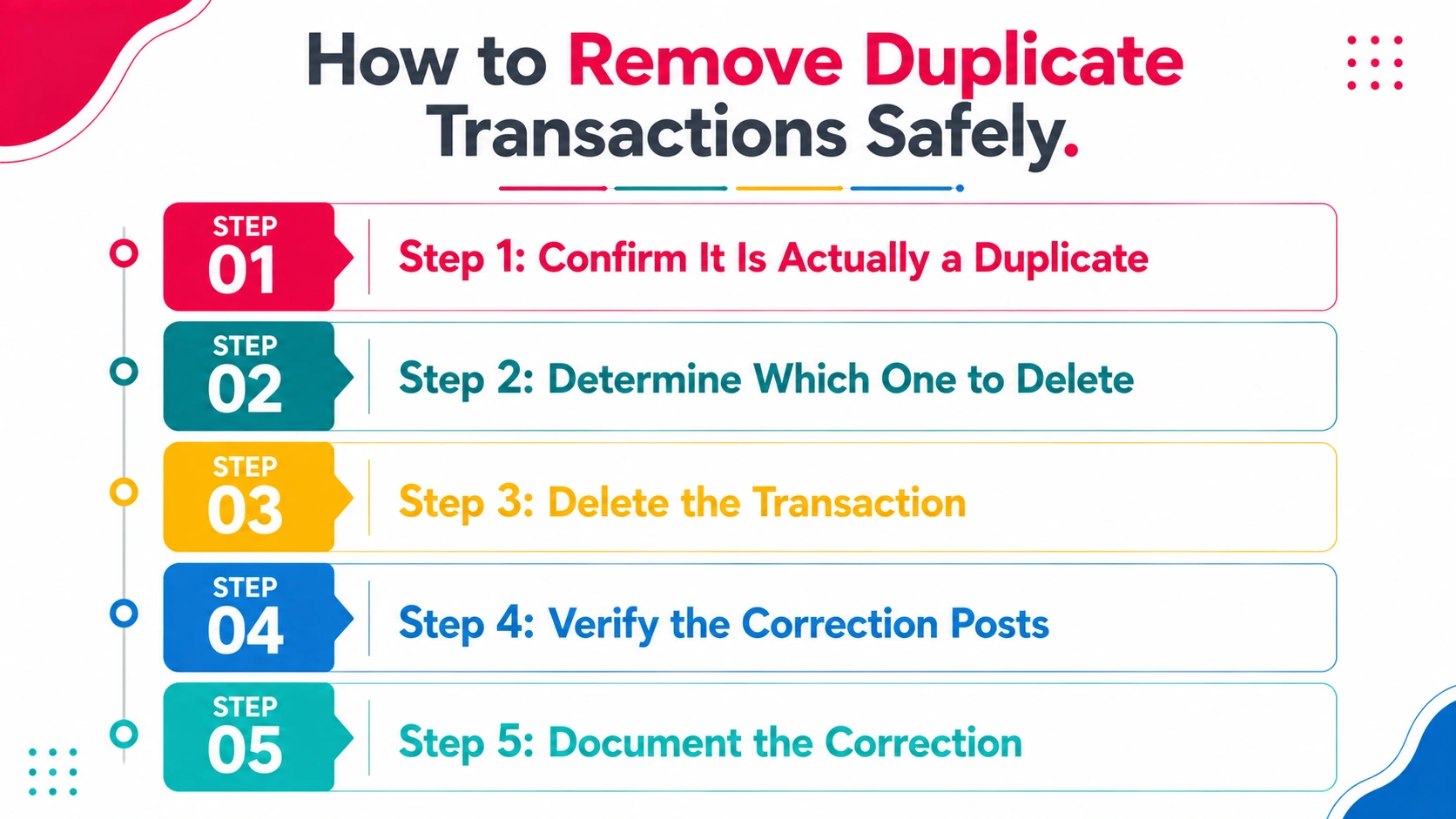
Finding a duplicate is half the work. Removing it correctly is equally important.
Step 1: Confirm It Is Actually a Duplicate
Do not delete a transaction based on a hunch. Verify:
- Is the amount identical or nearly identical (allowing for rounding)?
- Is the date the same or within one business day?
- Is the description the same or very similar?
- Does it appear twice in the GL?
- Is there a corresponding entry in the bank statement or supporting documentation? (If both duplicates are in the GL but only one is on the bank statement, one is definitely a duplicate.)
Step 2: Determine Which One to Delete
If both duplicates are identical, either can be deleted. Choose the one that was entered first (if you can determine which one).
If the duplicates have slightly different details (one is more complete, one is partial), delete the incomplete one.
If one duplicate is already reconciled (matched to a bank transaction) and one is not, delete the unreconciled one.
Step 3: Delete the Transaction
In QuickBooks Online:
- Navigate to the transaction.
- Click Edit.
- Look for a Delete option (usually at the bottom or in a menu).
- Click Delete.
- Confirm the deletion.
In Xero:
- Navigate to the transaction.
- Click Edit.
- Look for a Delete option.
- Click Delete.
- Confirm.
In a manual GL:
- Post a reversing entry (debit/credit opposite of the duplicate entry).
- Document why the reversal was posted.
- Do not simply delete the original entry (creates an audit trail gap).
Step 4: Verify the Correction Posts
After deletion, verify:
- The account balance decreased by the duplicate amount.
- Reconciliation now balances (if the duplicate was affecting a reconciliation).
- No other accounts were affected by the deletion.
- The transaction no longer appears in the GL.
Step 5: Document the Correction
Record:
- What was deleted and why.
- Date of deletion.
- Who deleted it.
- Supporting evidence (email, screenshot, reconciliation note).
This documentation is critical if the deletion is questioned during audit.
How to Prevent Duplicate Transactions
Prevention is significantly cheaper than correction.
Prevention Strategy 1: Use Bank Feeds
Bank feeds eliminate manual entry of bank transactions. The system imports transactions from the bank automatically.
Result: No duplicate manual entries, because the transaction is only entered once (by the bank feed).
Caveat: Bank feeds can sometimes duplicate if the feed is interrupted and re-imported. Verify bank feeds are set up correctly and run only once per day.
Prevention Strategy 2: Implement a Matching Process
Before posting a transaction, check:
- Has this exact amount been entered in the GL already today?
- Does the bank statement or vendor statement show this transaction only once?
- Is this a new transaction or a correction to a prior entry?
Use a simple checklist before posting.
Prevention Strategy 3: Use Recurring Entries for Predictable Transactions
Recurring payroll entries, recurring utility bills, recurring subscription fees these should be set up as recurring journal entries that post automatically on the scheduled date.
Result: No manual entry required, no duplicate risk.
Prevention Strategy 4: Reconcile Immediately After Month-End
Do not wait a week to reconcile. Reconcile within 2-3 days of month-end.
Duplicates are easier to spot and correct when the transactions are recent and your memory is fresh.
Prevention Strategy 5: Use Automated Duplicate Detection
Modern accounting tools (like Xenett) scan for duplicates automatically. The system flags duplicate amounts, dates, and descriptions for review before they post to the GL.
Result: Duplicates are caught before they create a reconciliation problem.
How Xenett's AI Catches Duplicates Automatically
Xenett's automated reconciliation feature includes duplicate detection across all accounts.
How it works:
As transactions post to the GL, Xenett's AI scans for:
- Duplicate amounts within the same account on the same or consecutive dates.
- Duplicate descriptions with matching amounts.
- Unusual patterns (same vendor/customer with multiple identical payments on the same date).
- Transactions that appear in multiple accounts that should not (like a transfer recorded in both the sending and receiving account).
When a duplicate is detected:
- It is flagged in the Close Dashboard.
- A notification is sent to the team member responsible for that account.
- The flagged duplicate is held and reviewed before posting.
- The team approves removal or marks it as a timing difference.
- The reconciliation documentation captures the decision.
Result:
Duplicates are caught on the day they occur, not discovered three weeks later during reconciliation. No rework. No chase. Clean books.
1,000+ firms use Xenett to catch duplicates before they become problems.
Also learn about Xenett’s Duplicate entries feature - https://youtu.be/swYzvHTbM4o?si=rbmY2WOJeLsTDrEg
Real Scenario: A Duplicate Bank Transfer That Cost 16 Hours
A 15-person accounting firm was managing close for 45 clients. On the third day of close, a reconciliation on Client ABC did not balance.
The team spent 4 hours trying to find the variance. No luck.
On day four, they discovered a bank transfer between ABC's checking and savings accounts. The transfer was recorded in Checking (correctly reducing it by $50,000). But it was also recorded in Savings (increasing it by $50,000) which is correct. The problem: the same transfer was recorded twice, resulting in two Checking debits and two Savings credits.
Four hours of investigation traced the issue to a duplicate bank feed import. The bank feed had been interrupted, re-connected, and imported the prior day's transactions again. The system did not detect duplicates.
The duplicate was deleted. But the 4-hour investigation and 12 hours of delayed close (client close was pushed back a full business day) cost the firm over $3,000 in billable time.
The fix: Implement automated duplicate detection on bank feeds. Flag any bank transaction that appears twice in a single import. Verify feed runs only once per day. Use Xenett's Close Dashboard to catch this issue before investigation becomes necessary.
FAQs
How do I know if something is a duplicate or a timing difference?
A duplicate is the same transaction recorded twice in your GL. It should not exist at all.
A timing difference is a transaction that appears in one record but not yet in another. A check recorded when written but not yet cleared by the bank is a timing difference, not a duplicate.
Test: Check the bank statement or supporting documentation. If the transaction appears only once there, it is a duplicate in your GL. If it appears only once, one GL entry is a timing difference (and will clear next period).
Can I just delete a duplicate transaction?
In QuickBooks Online and Xero, yes use the Delete function.
In a manual GL or system that locks transactions, no post a reversing entry instead. Deleting creates an audit gap. A reversal entry creates a clear audit trail.
What if I delete the wrong transaction?
QuickBooks Online and Xero allow you to undo a deletion (usually within a short time window). Use Undo immediately.
If the deletion is not reversible, post a correction entry to restore the correct balance.
Always verify the account balance after a deletion to catch the error quickly.
How do I prevent duplicates when I have multiple people posting transactions?
Use a reconciliation process where one person posts transactions and another person reviews them before marking them final.
Use bank feeds for recurring transactions so manual posting is eliminated.
Implement automated duplicate detection (like Xenett) that catches duplicates across all users.
What is the fastest way to find duplicates in a large GL?
Export to Excel and use Conditional Formatting (highlight duplicates) or create a pivot table. This takes 10-15 minutes and catches 90% of duplicates.
For comprehensive detection, use automated tools that scan for duplicates as transactions post. This prevents the need to find them in the first place.
Can bank feeds create duplicates?
Yes, if the feed is interrupted and re-imported. The system imports the same transactions twice.
Prevention: Verify your bank feed settings. Most modern systems run once per day. Confirm your settings match this.
Use Xenett's duplicate detection to catch any feed-related duplicates automatically.
Conclusion
Duplicates are one of the most common data errors in accounting. They are also one of the most preventable.
Manual detection methods (sorting, filtering, pivot tables) work but consume significant time. Automated detection catches duplicates as they occur, before they create reconciliation problems or close delays.
If you are managing 30+ clients or complex account structures, automated duplicate detection is not optional. It is a prerequisite for a clean, fast close.
Xenett's AI-powered duplicate detection works alongside your bank feeds and manual entries to catch duplicates instantly.
Stop duplicates before they disrupt your close.
Book a 15-Minute Demo | Start Free Trial - 14 Days, No Credit Card
A duplicate is the same transaction recorded twice in your GL. It should not exist at all. A timing difference is a transaction that appears in one record but not yet in another. A check recorded when written but not yet cleared by the bank is a timing difference, not a duplicate. Test: Check the bank statement or supporting documentation. If the transaction appears only once there, it is a duplicate in your GL. If it appears only once, one GL entry is a timing difference (and will clear next period).
In QuickBooks Online and Xero, yes use the Delete function. In a manual GL or system that locks transactions, no post a reversing entry instead. Deleting creates an audit gap. A reversal entry creates a clear audit trail.
QuickBooks Online and Xero allow you to undo a deletion (usually within a short time window). Use Undo immediately. If the deletion is not reversible, post a correction entry to restore the correct balance. Always verify the account balance after a deletion to catch the error quickly.
Use a reconciliation process where one person posts transactions and another person reviews them before marking them final. Use bank feeds for recurring transactions so manual posting is eliminated. Implement automated duplicate detection (like Xenett) that catches duplicates across all users.
Export to Excel and use Conditional Formatting (highlight duplicates) or create a pivot table. This takes 10-15 minutes and catches 90% of duplicates. For comprehensive detection, use automated tools that scan for duplicates as transactions post. This prevents the need to find them in the first place.
Yes, if the feed is interrupted and re-imported. The system imports the same transactions twice. Prevention: Verify your bank feed settings. Most modern systems run once per day. Confirm your settings match this. Use Xenett's duplicate detection to catch any feed-related duplicates automatically.


.webp)

.webp)