.svg)

Missing Entries & Accruals: How Accountants Can Stop Chasing Forgotten Expenses During Close

Ask questions, get summaries, or uncover key takeaways from this article.
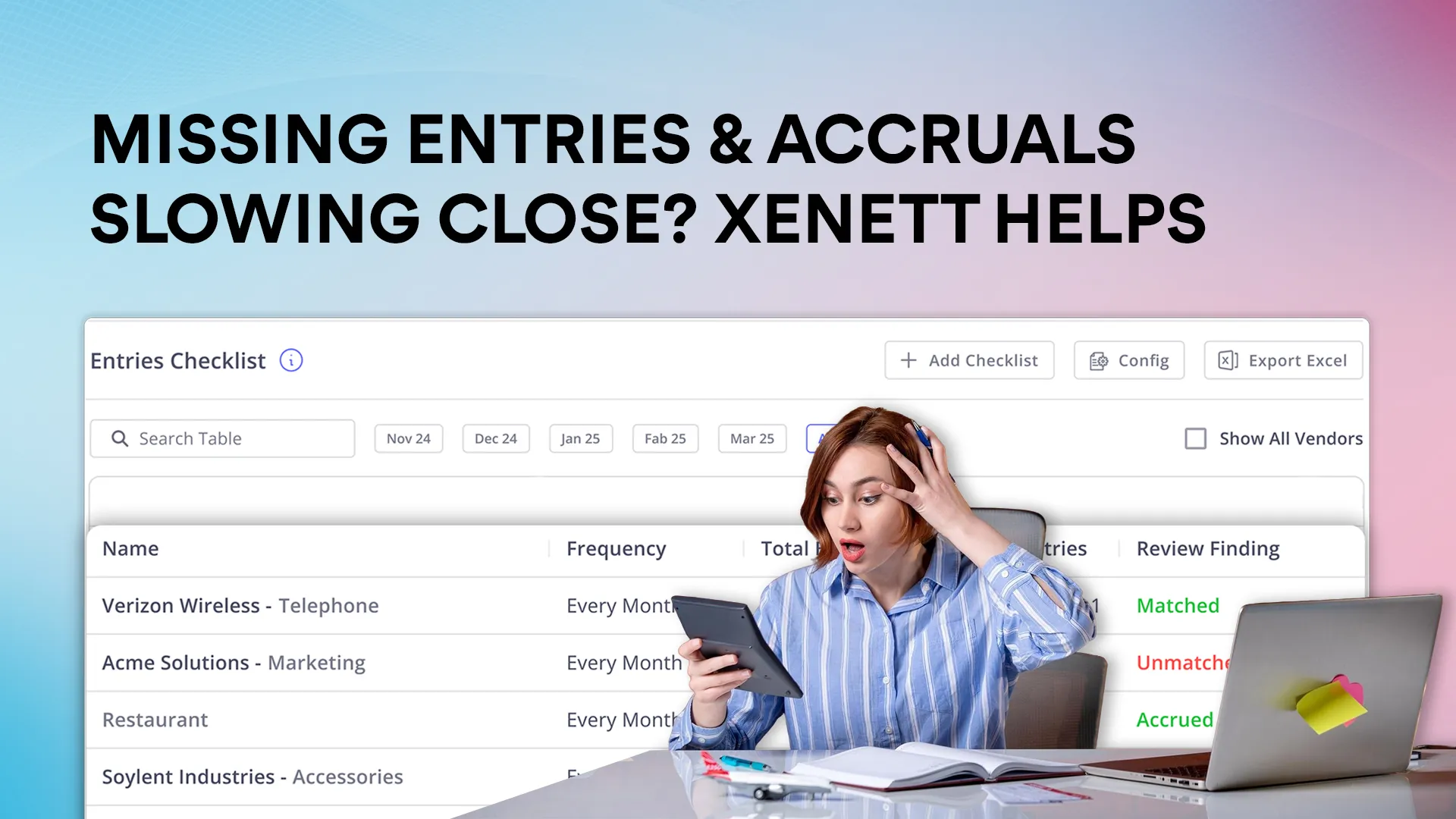
Month-end close often feels complete until a missing entry suddenly appears. Accountants spend hours retracing steps, checking spreadsheets, and questioning whether recurring expenses were posted correctly.
Missing Entries & Accruals helps accountants and bookkeepers identify missing recurring entries and create accrual journal entries directly from Xenett during the close process. This removes uncertainty and manual follow-ups.
Blog Summary
Missing Entries & Accruals is a Xenett feature designed to help accounting teams track expected recurring entries, identify missing expenses early, and create accruals directly within the close workflow. It replaces manual tracking with structured reviews.
This blog explains the problem accountants face, how the feature works, real use cases, setup steps, benefits, examples, and frequently asked questions. It also shows how Xenett centralizes control during close.
Why Missing Entries Are a Close-Process Risk
Why do missing entries keep showing up late in the close process? Because most recurring expenses are tracked manually, often outside the accounting system.
Accountants rely on Excel sheets or memory to remember monthly, quarterly, or yearly entries. However, this approach creates blind spots and delays during reconciliation.
Missing entries are often discovered only after reports are reviewed. Therefore, teams must reopen periods, adjust balances, and rush accruals at the last minute.
What are Missing Entries & Accruals
Missing Entries & Accruals is a Xenett feature that helps teams identify missing recurring transactions and create accrual journal entries directly from the review screen.
Instead of tracking expected expenses separately, Xenett turns them into a structured review point. This keeps recurring entries visible throughout the close process.
Problems Missing Entries & Accruals Solves
What problems does Missing Entries & Accruals address? It eliminates manual tracking, late discovery, and disconnected accrual workflows.
Recurring monthly, quarterly, or yearly entries are usually tracked using Excel or memory. However, this increases the risk of missed postings.
Bookkeepers may forget to post fixed entries during busy close periods. There is also no structured way to confirm whether entries were posted or handled correctly.
Manual tracking and later adjustments are time-consuming and error-prone. Therefore, accuracy during close often suffers.
Common Use Cases for Missing Entries & Accruals
When should accountants use Missing Entries & Accruals? The feature supports recurring expense tracking and accrual creation during close.
One common use case is tracking vendor expenses that must be posted every month. Xenett helps confirm whether those entries exist for the current period.
Another use case is identifying missing vendor entries during the month-end close. Expected transactions are reviewed systematically instead of manually searched.
Teams can also create accrual entries for missing expenses directly during close. This keeps adjustments within the review workflow.
Before vs After Using Xenett
How does the close process change after using Missing Entries & Accruals? The difference is structure, visibility, and timing.
Before Xenett
Before Xenett, accountants tracked recurring entries using Excel sheets or memory. This information lives outside the accounting workflow.
Missing entries are often identified late in the close process. Accruals are created manually, usually outside the review flow.
After Xenett
After Xenett, expected entries are tracked as a structured review point. Xenett highlights matched and unmatched entries automatically.
Accrual journal entries can be created directly from the review screen. This keeps everything centralized and review-driven.
How Missing Entries & Accruals Work
How does Xenett identify missing entries? The feature uses structured reviews combined with historical analysis or manual checklists.
Missing Entries & Accruals tracks expected transactions and compares them to posted entries. Results are clearly labeled for faster decisions.
Matched entries appear in green. Unmatched entries appear in red, prompting immediate action during close.
Settings and Configuration
What setup is required for Missing Entries & Accruals? The configuration focuses on mapping the accrued account.
During setup, users map the account where accruals will be posted. This ensures consistency when journal entries are created from Xenett.
No complex configuration is required beyond account mapping. Therefore, teams can enable the feature quickly.
Step-by-Step: Getting Started With Missing Entries & Accruals
How do you start using Missing Entries & Accruals? The process follows the same structure as other Xenett review points.
First, add Missing Entries as a review point. Then click Getting Started to begin setup.
Next, map the accrued account. This determines where accrual journal entries will post.
Automatic Detection Method
How does automatic detection work? Xenett analyzes historical transactions to identify recurring patterns.
Xenett reviews the last three months of transactions. It identifies recurring entries based on vendors and posting behavior.
This method works best when a consistent transaction history exists. It reduces manual checklist creation.
Manual Checklist Creation Method
What if historical data is unavailable? Xenett allows manual checklist creation.
Users click Add Checklist and enter details such as name, frequency, expected number of entries, and applicable months.
Manual checklists do not require historical data. Therefore, they are useful for new accounts or vendors.
Reviewing Results and Creating Accruals
What happens after setup? Xenett displays the checklist results clearly during the review.
Matched conditions are highlighted in green. Unmatched conditions are highlighted in red for visibility.
For unmatched entries, users click Create Accrual. This opens the journal entry screen directly within Xenett.
The journal entry can be edited if needed. Once posted, Xenett records it in the connected accounting system.
Example: A Simple Missing Entry Scenario
How does this work in practice? Consider a recurring monthly marketing expense.
A vendor named Acme Solutions charges a monthly marketing fee. The expense is expected every month.
In the current month, no entry is recorded. Xenett marks the condition as unmatched.
The accountant clicks Create Accrual, adjusts the journal entry if required, and posts it from Xenett.
The accrual is automatically recorded in the connected accounting system.
How Xenett Can Help
Missing Entries & Accruals help Xenett users reduce risk during close. It brings recurring expense tracking into a structured review process.
The feature saves time by eliminating manual spreadsheets. It improves accuracy by identifying missing entries early.
By centralizing accrual creation within Xenett, teams maintain consistency. Close reviews become faster and more controlled.
Conclusion
Missing recurring entries creates unnecessary stress during close. Manual tracking increases risk, delays decisions, and leads to rushed adjustments.
Missing Entries & Accruals replaces spreadsheets and memory with a structured, review-driven process inside Xenett. It helps teams identify missing expenses early and create accruals with confidence.
If you want a cleaner, more controlled close, start using Missing Entries & Accruals in Xenett today.
Frequently Asked Questions
Missing Entries & Accruals is used to track expected recurring entries and identify missing expenses during close. It also enables accrual creation directly from Xenett.
Automatic detection requires at least three months of historical transactions. However, manual checklist creation does not require historical data.
Yes. For unmatched entries, users can click Create Accrual, edit the journal entry, and post it directly from Xenett.
Missing entries and accruals require a connection with QuickBooks Online or Xero. Accruals post to the connected accounting file.
Yes. Matched entries are highlighted in green, while unmatched entries are highlighted in red for clarity.


.webp)