.svg)

Common Accounting Errors in QuickBooks: Detection, Correction, and Prevention

Ask questions, get summaries, or uncover key takeaways from this article.
Blog Summary / Key Takeaways
- Accounting errors cost time, delay close, and create audit headaches. The most common errors duplicates, uncategorized entries, mispostings, accrual errors happen at every firm that uses QuickBooks.
- The difference between firms that catch errors quickly and firms that suffer through delayed closes is not the absence of errors. It is the process for finding and preventing them.
- Manual error detection (visual review, sorting, filtering) catches 70-80% of errors. Automated error detection using AI catches 99%+ and prevents errors from posting in the first place.
- This guide covers six types of errors, why they happen, how to find them, and how to prevent them. Use this to audit your current process and identify gaps.
The Cost of Accounting Errors
Before diving into specific errors, understand the cost.
A single error costs:
- 15-30 minutes to identify and correct.
- 30-60 minutes if discovered during reconciliation (additional investigation required).
- 2-4 hours if discovered during audit or client review.
Five errors in one close cycle:
- 2-3 hours of team rework.
- 1-2 days of close delay (waiting for corrections before final review).
- Client frustration (delayed financials).
Undetected errors:
- Audit findings (hours of reconstruction).
- Mismanaged client relationships (incorrect financials provided).
- Potential fraud (if errors go undetected for months).
Prevention is dramatically cheaper than correction. Catching an error on day one costs 15 minutes. Catching it six months later costs hours.
Error Categories: By Type
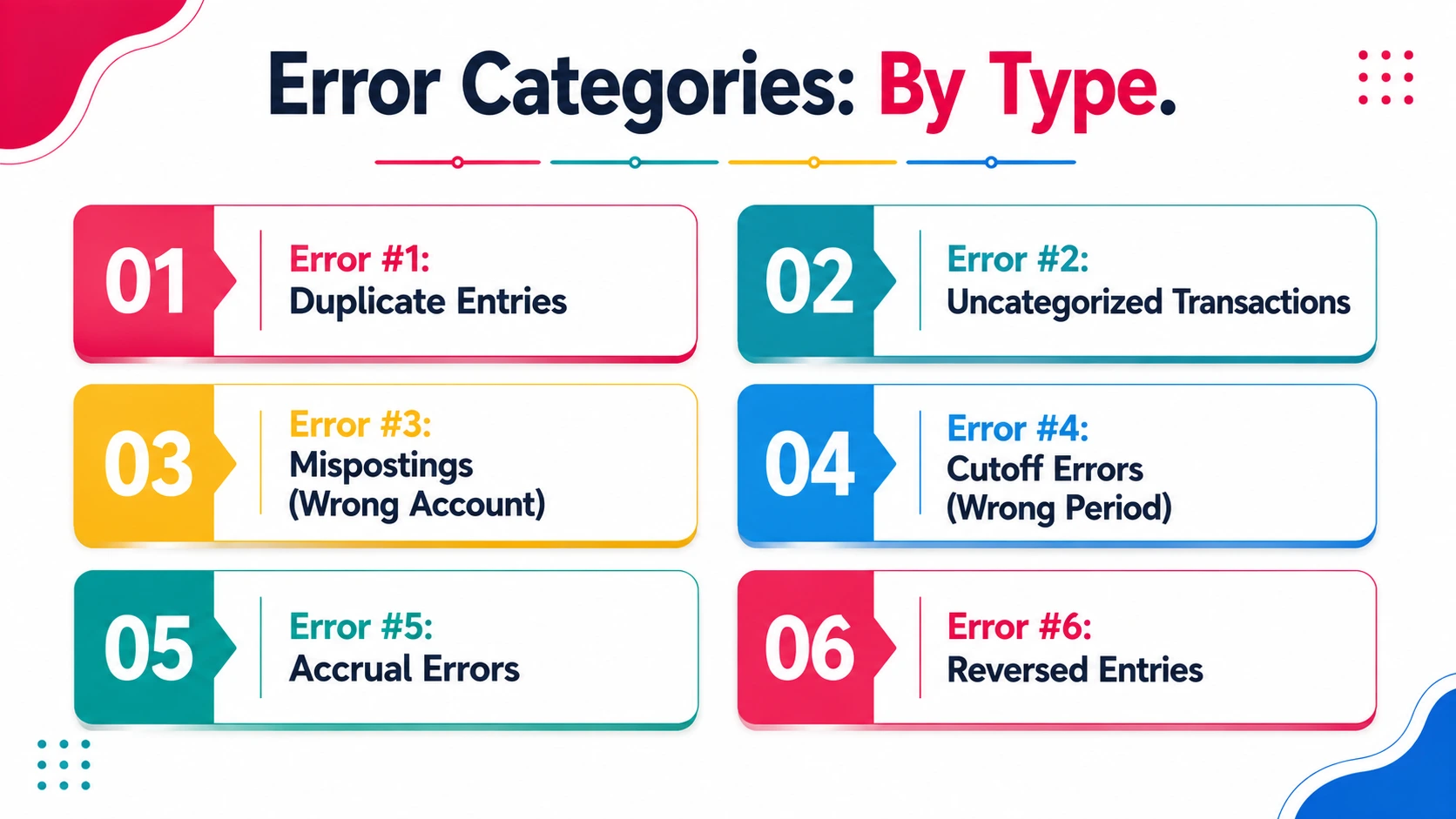
Accounting errors fall into three categories.
Data Entry Errors - Wrong amount, wrong date, wrong account code, or duplicate entry. The bookkeeper made a mistake when entering the transaction.
Logic Errors - The transaction was entered correctly but in the wrong account, or the GL entry logic is reversed (debit/credit). The transaction itself is correct, but the classification is wrong.
Timing Errors - The transaction is correctly entered but in the wrong period. A December transaction recorded in January, or a January transaction recorded in December.
Understanding the category helps you identify the root cause and design prevention strategies.
Error #1: Duplicate Entries
Definition: The same transaction recorded more than once in the GL.
Why it happens:
- A bookkeeper posts a transaction, thinking it did not save, then posts it again.
- A bank feed imports the same transaction twice (feed interrupted and re-imported).
- A transaction is manually entered and also imported from a vendor feed.
- A payment processed twice accidentally by the payment processor.
How to detect it:
Method 1: Sort by amount and date
- Export the GL account to Excel.
- Sort by amount (highest to lowest).
- Look for identical amounts in consecutive rows or nearby rows.
- Check the date, same amount and same (or very close) date likely indicates a duplicate.
Method 2: Filter by transaction description
- Filter the GL for a specific vendor or customer name.
- Look for identical descriptions with matching amounts.
Method 3: Use QuickBooks native tools
- Go to Banking > select account > look at Uncategorized transactions.
- If the same amount appears twice on the same date, one is likely a duplicate.
Impact:
- GL balance is inflated (or deflated, depending on the duplicate type).
- Reconciliation does not balance.
- Client financial statements are inaccurate.
How to fix it:
- Confirm it is actually a duplicate (check supporting documentation).
- Determine which transaction to delete (usually the one entered second).
- Delete the duplicate in QuickBooks.
- Verify the GL balance is now correct.
- Document the correction.
How to prevent it:
- Use bank feeds for bank transactions (eliminating manual entry).
- Set up a rule in QuickBooks to flag duplicate amounts on the same date.
- Have a second person review high-dollar transactions before they post.
- Implement a reconciliation process that catches duplicates on day one of month-end close.
See How to Find and Fix Duplicate Transactions
Error #2: Uncategorized Transactions
Definition: A transaction posted to QuickBooks but not assigned to the correct account or expense category.
Why it happens:
- Bank feed imports a transaction but cannot match it to an existing category (ambiguous vendor name).
- Bookkeeper uploads transactions in bulk and does not have time to categorize all of them.
- New vendor or customer that does not have a pre-set category.
- Unusual transaction type that does not fit a standard category.
How to detect it:
In QuickBooks Online:
- Go to Banking.
- Look at Uncategorized Transactions (usually listed at the top).
- Items in this list have not been categorized yet.
- Review the description and amount to assign the correct account.
In your GL:
- Look for accounts labeled "Uncategorized," "Clearing," or "Suspense."
- Anything in these accounts should be investigated immediately.
- If balances in these accounts carry from month to month, you have a categorization backlog.
Impact:
- Expense accounts are incomplete or inaccurate.
- Bank reconciliation shows the uncategorized amount as a variance.
- Close cannot be finalized until all transactions are categorized.
- Client financial statements are incomplete.
How to fix it:
- Review the transaction description (vendor name, reference, check number).
- Determine the correct account or expense category.
- Assign it in QuickBooks (either in the Banking screen or by posting a journal entry).
- Verify the transaction is no longer in Uncategorized.
- Verify bank reconciliation now balances.
How to prevent it:
- Set up expense categories (chart of accounts) comprehensively before the close cycle.
- Assign default categories to common vendors (e.g., "Utilities" for the power company).
- Set a rule to review all uncategorized transactions within 2 days of posting.
- Implement a report that flags any balance in Uncategorized accounts at month-end.
Also watch how Xenett solves Uncategorized Transactions easily
Error #3: Mis-postings (Wrong Account)
Definition: A transaction correctly entered but assigned to the wrong account. The amount and date are right, but the account code is wrong.
Why it happens:
- Bookkeeper posts the transaction to Account 5010 instead of 5110 (similar account numbers).
- Ambiguous transaction that could belong to multiple accounts.
- Bookkeeper is unfamiliar with the client's chart of accounts.
- System default assigns a transaction to the wrong category.
How to detect it:
Method 1: Review account detail by vendor or description
- Filter the GL by vendor name or transaction description.
- Look for transactions that seem out of place for that account.
- Example: A transaction for "Office Supplies" appearing in the "Equipment" account.
Method 2: Analyze account balances for anomalies
- Compare this month's account balance to prior months.
- If a balance is significantly different, investigate why.
- Pull the detail for that account and look for unusual transactions.
Method 3: Run a review report
- Create a GL detail report for all transactions above a certain amount (e.g., $500+).
- Visually review each transaction's account assignment.
- Flag any that seem incorrect.
Impact:
- Expense or asset accounts are inflated or deflated.
- Client financial statements show incorrect categorization.
- Tax filing may be affected (if mis-posted to the wrong tax category).
- Close cannot finalize until mis-postings are corrected.
How to fix it:
- Identify the incorrect posting.
- Reverse the original entry (post a correcting journal entry with opposite debit/credit).
- Post the correct entry to the correct account.
- Document why the mis-posting occurred.
- Verify both the original account and correct account now reflect the right balance.
How to prevent it:
- Provide a chart of accounts reference guide to the person posting transactions.
- Use a pre-set list of expense categories (no free-text account entry).
- Require a second review for transactions above a certain amount.
- Implement a rule to flag transactions in accounts that do not match the vendor category.
Error #4: Cutoff Errors (Wrong Period)
Definition: A transaction is correctly recorded but in the wrong accounting period. A December transaction recorded in January, or vice versa.
Why it happens:
- Bank transactions arrive after month-end and are recorded in the wrong month.
- Invoice is received in one month but invoice date is from the prior month.
- Accrual is not properly reversed in the next period.
- Check is dated December but does not clear until January.
How to detect it:
Method 1: Review reconciling items
- During reconciliation, look for outstanding checks or deposits in transit from the prior month.
- If they are still outstanding, the cutoff is correct (timing difference).
- If they never cleared, the cutoff may be wrong (mis-posted to wrong month).
Method 2: Analyze period-end reconciliation
- Review the GL on the last day of the month vs. the first day of the next month.
- Look for transactions that should have posted in the prior month but are dated in the current month.
Method 3: Compare to supporting documentation
- Vendor statements, customer statements, bank statements all have transaction dates.
- Compare to your GL date.
- If dates do not match, you have a cutoff error.
Impact:
- Revenue is recorded in the wrong period (earlier or later than actual).
- Expenses are recorded in the wrong period.
- Month-to-month comparisons are distorted.
- Year-end results may be inaccurate.
How to fix it:
- Identify the transaction and the correct period.
- Reverse the entry in the incorrect period.
- Post the entry to the correct period.
- Document why the cutoff error occurred.
- Adjust any period-end accruals if necessary.
How to prevent it:
- Use transaction date (date the event occurred) rather than posting date (date entered in GL).
- Implement a cutoff policy (e.g., "All bank transactions must be recorded by the 5th of the following month").
- During close, flag any transactions dated in the prior month or after month-end.
Error #5: Accrual Errors
Definition: Month-end accruals are posted but not properly reversed in the next period, or accruals are forgotten entirely.
Why it happens:
- Accrual is posted at month-end but the reversal entry is never posted.
- Accrual is posted but the amount is estimated wrong.
- Recurring accrual is missed (e.g., accrued payroll, accrued vacation).
- Accrual is posted twice (duplicated in accrual setup).
How to detect it:
Method 1: Review accrual accounts for balances
- At month-end, accrual accounts should either be at zero or have a documented balance (if multi-period accruals).
- If an accrual account has an old balance (e.g., a balance from two months ago), the reversal was never posted.
Method 2: Compare GL to supporting schedules
- Get the accrual schedule (payroll, vacation, utilities, etc.).
- Compare GL balance to the schedule balance.
- They should match. If not, an accrual is missing or overstated.
Method 3: Use a recurring journal entry log
- Track which recurring entries posted each month.
- If a recurring accrual did not post, investigate why.
Impact:
- Expense accounts are overstated or understated.
- Liability accounts are inflated (if accrual was not reversed).
- Month-to-month comparisons are distorted.
- Year-end accrual reconciliation becomes a rework project.
How to fix it:
- Identify the unpaid accrual or the missing reversal.
- Post the reversal entry if the reversal was missed.
- Post a correction entry if the accrual amount was wrong.
- Verify the accrual account balance matches the supporting schedule.
- Document the correction.
How to prevent it:
- Use QuickBooks recurring journal entries for predictable accruals (payroll, utilities, subscriptions).
- Set the accrual and reversal to post automatically on the correct dates.
- Implement a month-end close checklist that includes accrual verification.
- Create a reconciliation of accrual accounts to supporting documentation as part of your close process.
(Debit/Credit Backwards)
Definition: A journal entry is posted with debit and credit reversed. The transaction is in the GL but with the wrong sign.
Why it happens:
- Bookkeeper reverses debit and credit by mistake.
- Correction entry is posted with wrong debit/credit logic.
- System formula entry logic is reversed (unusual but happens with custom rules).
How to detect it:
Method 1: Account balance verification
- Compare account balances to prior month.
- If a balance changes direction unexpectedly (positive to negative, or vice versa), a reversal entry likely occurred.
Method 2: Detail review
- Pull the GL account detail.
- Look for entries that reduce the balance when they should increase it (or vice versa).
Method 3: Trial balance comparison
- Run a trial balance.
- Compare to the supporting schedule or chart of accounts rules.
- If a balance is in the wrong debit/credit column, investigate.
Impact:
- Account balance is double the error amount (in the wrong direction).
- GL does not balance.
- Reconciliation is significantly off.
- Close cannot be finalized.
How to fix it:
- Identify the reversed entry.
- Post a correcting entry that reverses the original entry and posts it correctly.
- Verify the account balance is now correct.
- Document the correction.
How to prevent it:
- Have a second person review all manual journal entries before they post.
- Use templates for common journal entries (to ensure debit/credit is always correct).
- Implement a rule that flags entries where the normal balance is reversed (e.g., a credit in a debit account).
How to Detect Errors: 4 Detection Methods
Method 1: Manual Visual Review (Lowest Cost, Most Time)
What it is: Manually review GL transactions line-by-line, looking for unusual amounts, descriptions, or account assignments.
Time: 30-60 minutes per account.
Catch rate: 70-80% (human eye misses patterns and subtle errors).
When to use it: Small accounts with 10-20 transactions per month.
Method 2: Analytic Procedures (Balance Analysis)
What it is: Compare account balances month-to-month. Investigate accounts that changed significantly.
Time: 10-15 minutes per account.
Catch rate: 60-70% (catches large errors and anomalies, misses small errors).
When to use it: Quick scan during close to identify problem accounts.
Method 3: Data Analysis (Sorting, Filtering, Pivot Tables)
What it is: Export GL to Excel. Sort by amount, filter by description, create pivot tables to spot duplicates and patterns.
Time: 20-40 minutes per account.
Catch rate: 80-90% (catches duplicates, unusual patterns, aged items).
When to use it: Large accounts (100+ transactions) or accounts with history of errors.
Method 4: Automated AI Detection (Highest Cost, Least Time)
What it is: Use AI-powered tools that scan for errors as transactions post. Flags duplicates, uncategorized entries, mis-postings, and cutoff errors automatically.
Time: 5 minutes per account (review exceptions only).
Catch rate: 99%+ (catches errors before they compound).
When to use it: Firms managing 30+ clients or complex account structures. ROI is compelling (hours saved, errors prevented).
Recommendation: Use a combination. Automated detection for routine errors (duplicates, uncategorized). Manual review for unusual transactions or client-specific issues.
How Xenett's AI Catches Errors Automatically
Xenett's AI engine includes 50+ automated error checks that scan accounts as transactions post.
What it detects:
Duplicate Detection - Matches amount, date, and description across all accounts. Flags duplicates for review before posting.
Uncategorized Flagging - Identifies transactions that have not been assigned to an expense category. Blocks close until categorized.
Misposting Detection - Uses machine learning to identify unusual account assignments. Flags transactions that seem out of place.
Cutoff Analysis - Flags transactions dated in the prior period that should not be posted yet.
Accrual Validation - Verifies accruals match supporting schedules. Alerts if reversals are missed.
Aging Analysis - Identifies items that have been outstanding for multiple periods and have not resolved.
Threshold Alerts - Flags transactions above a certain amount or outside historical range.
Bank Reconciliation Anomalies - Detects patterns that suggest reconciliation errors before they compound.
How it works:
As transactions post to the GL, Xenett's AI analyzes them against:
- Historical patterns (is this unusual for this account?).
- Supporting documentation (does it match the bank statement or vendor schedule?).
- GL logic (is debit/credit correct for this account type?).
Flagged items are surfaced in the Close Dashboard. The team reviews and approves or corrects them. The reconciliation documentation captures the decision.
Result: Errors are caught on day one, not discovered weeks later during audit.
1,000+ firms use Xenett to catch errors before close.
[Link to: Learn About Xenett's AI Error Detection]
Real Scenario: $47,000 Mis-posting Caught in Review
A bookkeeper at a mid-sized firm posted a $47,000 equipment purchase to the "Repairs and Maintenance" expense account instead of the "Fixed Assets" account.
The error was undetected for two weeks (until close). During review, an accountant noticed Repairs and Maintenance was significantly higher than usual and investigated.
The mis-posting was found, but by then:
- The GL was three days into close.
- The trial balance did not balance (due to the wrong account).
- The equipment purchase order and invoice were questioned (was it actually a repair?).
- 4 hours were spent on investigation and correction.
- Close was delayed by one day.
If the error had been caught on day one:
- 15 minutes to identify and correct.
- GL remains accurate.
- No close delay.
The difference: Automated error detection flags account assignments (especially large amounts to unusual accounts) immediately. Manual process found it three weeks later.
FAQs
What is the most common accounting error?
Duplicates. A transaction entered or imported twice is the single most common error we see. It is also the easiest to prevent with bank feeds and duplicate detection rules.
How do I know if my error detection process is working?
Track the number of errors found and when they are found.
- Errors found during month-end close: Good (in-house process is working).
- Errors found during external audit: Bad (missed during internal close).
- Errors found after financials are released: Catastrophic (requires restatement).
Benchmark: You should find and correct 90% of errors during month-end close, before review and final approval.
Can QuickBooks prevent errors automatically?
QuickBooks does not have built-in error detection. It has tools (bank feeds, categorization rules, reconciliation), but it requires manual oversight.
For automated error detection, you need a separate tool (like Xenett) that scans and flags errors as they post.
What is the cost of undetected errors?
Auditors typically charge $150-300/hour. Finding and correcting an error during audit costs 3-8 hours per error (tracing back multiple months, reconstructing transactions, adjusting financials).
A single undetected error costs $450-2,400 in audit fees, plus client dissatisfaction.
Prevention is dramatically cheaper.
How do I audit my current error detection process?
- Pull a list of all errors found in the last year (by month).
- For each error, note when it was found (during close, during review, during audit, or after).
- Calculate the percentage found during close vs. after.
- If less than 90% are found during close, your process has gaps.
Common gaps:
- No reconciliation process.
- Reconciliation not reviewed.
- No duplicate detection.
- No uncategorized transaction review at month-end.
Can I fix these errors without new software?
Yes. Implement a manual close process:
- Month-end checklist (includes error detection steps).
- Reconciliation process (compare GL to supporting documentation).
- Review protocol (second person reviews flagged items).
- Documentation (record what was found and corrected).
Manual process will catch 80-90% of errors. For 99%+ catch rate, you need automated detection.
Conclusion
Accounting errors are inevitable. The difference between firms with clean closes and firms with chaos is not the absence of errors. It is the detection process.
Catching an error on day one costs 15 minutes. Catching it weeks later costs hours.
Implement a strong error detection process using a combination of manual review and automated detection. During close, prioritize finding errors quickly so they do not delay finalization.
For firms managing 30+ clients, automated error detection is mandatory. The ROI in hours saved, errors caught, and close acceleration pays for the tool in the first month.
Xenett's 50+ AI checks catch errors before they compound.
Catch accounting errors before they delay your close.
Book a 15-Minute Demo | Start Free Trial - 14 Days, No Credit Card
Duplicates. A transaction entered or imported twice is the single most common error we see. It is also the easiest to prevent with bank feeds and duplicate detection rules. How do I know if my error detection process is working? Track the number of errors found and when they are found. Errors found during month-end close: Good (in-house process is working). Errors found during external audit: Bad (missed during internal close). Errors found after financials are released: Catastrophic (requires restatement). Benchmark: You should find and correct 90% of errors during month-end close, before review and final approval
QuickBooks does not have built-in error detection. It has tools (bank feeds, categorization rules, reconciliation), but it requires manual oversight. For automated error detection, you need a separate tool (like Xenett) that scans and flags errors as they post.
Auditors typically charge $150-300/hour. Finding and correcting an error during audit costs 3-8 hours per error (tracing back multiple months, reconstructing transactions, adjusting financials). A single undetected error costs $450-2,400 in audit fees, plus client dissatisfaction. Prevention is dramatically cheaper.
Pull a list of all errors found in the last year (by month). For each error, note when it was found (during close, during review, during audit, or after). Calculate the percentage found during close vs. after. If less than 90% are found during close, your process has gaps. Common gaps: No reconciliation process. Reconciliation not reviewed. No duplicate detection. No uncategorized transaction review at month-end.
Yes. Implement a manual close process: Month-end checklist (includes error detection steps). Reconciliation process (compare GL to supporting documentation). Review protocol (second person reviews flagged items). Documentation (record what was found and corrected). Manual process will catch 80-90% of errors. For 99%+ catch rate, you need automated detection.


